

Blog
How do i connect wireless headphones to tv

Unlock the Sound: A Simple Guide to Connect Wireless Headphones to TV
Imagine settling into your favorite spot on the couch, ready to dive into a movie—only to realize the volume might disturb others. Or perhaps you crave a more immersive audio experience without the clutter of wires. Wireless headphones can be the perfect solution, but connecting them to your TV isn’t always as straightforward as pairing them with your phone.Whether you’re using Bluetooth headphones, RF models, or even gaming headsets, this guide will walk you through the steps to seamlessly sync your audio to the big screen. No jargon, no fuss—just clear, easy-to-follow advice to help you enjoy your TV the way you want.Let’s get started!
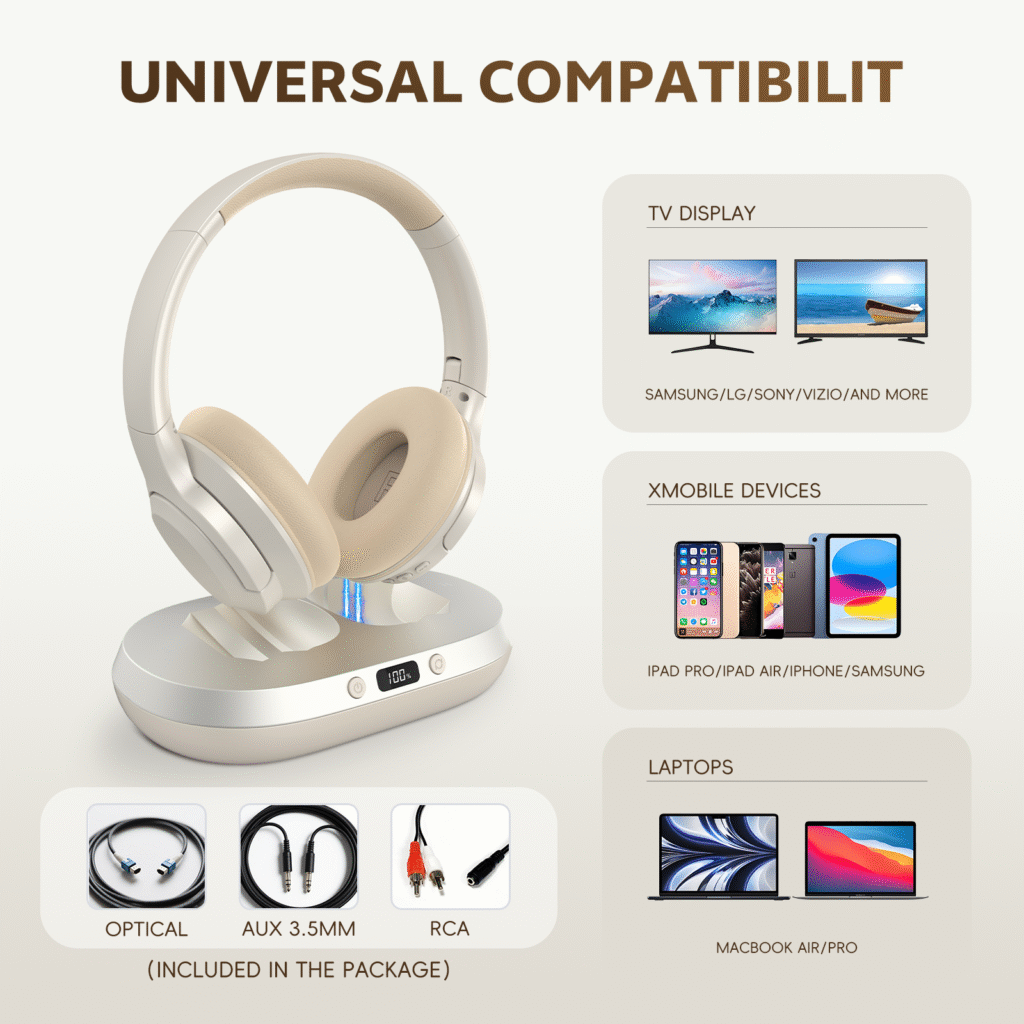
Table of Contents
- Understanding Your TV’s Wireless Capabilities
- Choosing the Right Connection Method for Your Headphones
- Step by Step Guide to Pairing Wireless Headphones with Your TV
- Troubleshooting Common Connection Issues and Optimizing audio Quality
- Q&A
- The Conclusion
Understanding Your TV’s Wireless Capabilities
Connecting wireless headphones to your TV can transform your viewing experience,eliminating distractions and immersing you in crisp,personal audio. Modern TVs offer several wireless options, including Bluetooth, RF (radio frequency), or even Wi-fi-based solutions like Apple AirPlay or Google Cast. To get started, check your TV’s settings menu for connectivity options—look under Sound or Network sections.If your TV lacks built-in Bluetooth, don’t worry; affordable adapters can bridge the gap.
| Connection Type | Best For | range |
|---|---|---|
| Bluetooth | Short-range, easy pairing | Up to 30 ft |
| RF | No latency, stable signal | Up to 100 ft |
For seamless pairing, ensure your headphones are in discovery mode and select them from your TV’s device list. Some models may require a code like 0000 for authentication. If audio sync issues arise, explore your TV’s audio delay settings or consider headphones with low-latency technology. Remember, not all wireless solutions are equal—RF headphones excel for lag-free movie nights, while Bluetooth is ideal for casual use. Experiment to find your perfect match!
Choosing the Right Connection Method for Your Headphones
Connecting wireless headphones to your TV can transform your viewing experience, offering immersive sound without disturbing others. The method you choose depends on your TV’s capabilities and your headphones’ compatibility. Here are the most common ways to establish a seamless connection:
- Bluetooth: Ideal for modern TVs with built-in Bluetooth. Simply enable pairing mode on both devices.
- RF or USB transmitters: great for older TVs—plug in the transmitter and sync with your headphones.
- Optical audio adapters: If your TV lacks bluetooth, an optical-to-Bluetooth converter bridges the gap.
| Connection Type | Best For |
|---|---|
| Bluetooth | smart TVs, minimal setup |
| RF/USB | older models, stable signal |
Latency and audio quality vary across methods—Bluetooth may introduce slight delays, while RF transmitters often deliver lag-free performance.Check your TV’s manual for specific wireless audio support before deciding. If all else fails, HDMI ARC or dedicated wireless headphone systems provide reliable alternatives. Experiment to find the perfect balance of convenience and sound fidelity for your setup.
step by Step Guide to Pairing Wireless Headphones with Your TV
Connecting wireless headphones to your TV can transform your viewing experience, offering immersive sound without disturbing others. First, check your TV’s compatibility—most modern TVs support Bluetooth, but older models may require an adapter. Here’s how to get started:
- Enable pairing mode on your headphones (refer to the manual if unsure).
- Navigate to your TV’s Bluetooth settings under “Sound” or “Connections.”
- Select your headphones from the list of available devices.
- Confirm the connection and test the audio.
If your TV lacks Bluetooth, a wireless transmitter is your best friend. Simply plug it into the audio output port (like optical or AUX) and pair it with your headphones. For a seamless setup, consider this quick reference:
| Connection Type | Solution |
|---|---|
| Bluetooth-enabled TV | Direct pairing via settings |
| Non-Bluetooth TV | Use a wireless transmitter |
Troubleshooting Common Connection Issues and Optimizing Audio Quality
connecting wireless headphones to your TV shoudl be seamless, but occasional hiccups can disrupt your experience. If you’re facing pairing issues, start by ensuring both devices are in pairing mode and within range. Common culprits include:
- Bluetooth interference from other devices—try turning them off.
- Outdated firmware—check for updates on your TV or headphones.
- Low battery—a quick charge might resolve connectivity drops.
For crisp, lag-free audio, consider these optimizations. If your TV lacks built-in Bluetooth, a low-latency transmitter can bridge the gap. Adjusting audio settings can also make a difference:
| Setting | Recommended Value |
|---|---|
| Audio Format | AAC or aptX (if supported) |
| Volume Level | 80% on TV, fine-tune via headphones |
Q&A
Q&A: How Do I Connect Wireless Headphones to My TV?
Q: Why would I want to connect wireless headphones to my TV?
A: Great question! Maybe you want to binge your favorite show without disturbing others, enjoy late-night gaming with immersive sound, or simply cut the cord for more freedom. Wireless headphones give you flexibility and privacy—no more tangled wires!
Q: Can all TVs connect to wireless headphones?
A: not all TVs are born equal! Older models might need some extra help (like adapters), while newer smart TVs frequently enough have built-in Bluetooth or wireless audio options. Check your TV’s specs—it’s like giving it a quick health check!
Q: What’s the easiest way to connect Bluetooth headphones to my TV?
A: If your TV has Bluetooth:
- Put your headphones in pairing mode (check the manual if you’re stuck—no shame in it!).
- Go to your TV’s Settings > Sound > Bluetooth Devices and select your headphones.
- Celebrate your newfound wireless freedom!
No Bluetooth? No problem! Keep reading.
Q: My TV doesn’t have Bluetooth—what now?
A: Don’t panic! You’ve got options:
- Bluetooth Transmitter: Plug this tiny hero into your TV’s audio output (like the headphone jack or optical port), pair your headphones, and voilà—wireless sound!
- RF Headphones: These use radio frequencies (no Bluetooth needed) and often come with their own transmitter. Perfect for lag-free audio, especially for movies.
Q: Why is there a delay between the video and audio?
A: Ah, the dreaded lag! Bluetooth can sometiems be slow. Try:
- Using aptX Low Latency headphones (if your TV supports it).
- Switching to an RF transmitter for near-instant sync.
- Checking if your TV has a “game mode” to reduce audio delay.
Q: Can I connect multiple headphones at once?
A: Some TVs and transmitters support multi-pairing—great for movie nights! Otherwise, a Bluetooth splitter or dedicated multi-headphone system can save the day.
Q: Any pro tips for the best experience?
A: Absolutely!
- Charge up—nothing’s worse than headphones dying mid-climax.
- Keep devices close to avoid dropouts.
- Experiment with settings—some TVs let you tweak audio output formats for better quality.
Q: What if I’m still stuck?
A: Consult your TV’s manual (yes, really), check online forums, or contact the manufacturer. Sometimes, tech just needs a little patience—and maybe a snack break.
Now grab those headphones, kick back, and enjoy your wireless audio paradise! 🎧✨
The Conclusion
Outro:
And there you have it—your TV and wireless headphones are now in perfect harmony! Whether you’re binge-watching late at night or immersing yourself in a cinematic masterpiece, you’ve just unlocked a whole new level of audio freedom. No more tangled wires, no more disturbing the peace—just seamless, wireless sound at your command.Now, sit back, press play, and let the sound surround you. happy listening! 🎧✨